




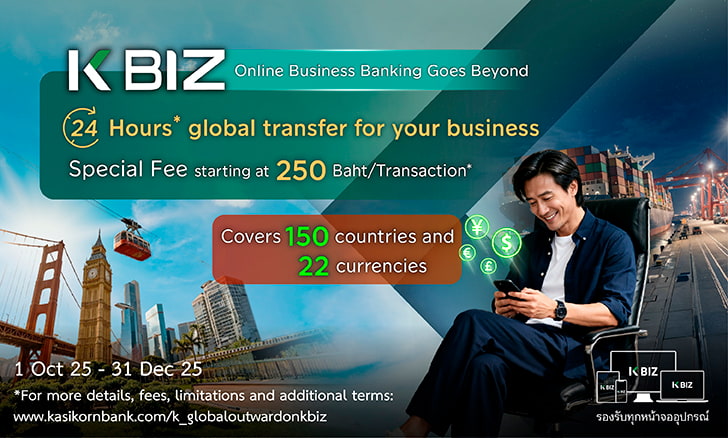






*Terms of service are as determined by the bank.
| Feature | Transfer via KBank Partner | Transfer via SWIFT |
|---|---|---|
| Territories | 59 Countries/Territories | >150 Countries/Territories |
| Currency* |
14 Currencies* AUD, CNY/RMB, EUR, GBP, HKD, IDR, INR, JPY, KRW, MYR, PHP, SGD, USD, VND *Supported currencies are subject to change. |
21 Currencies* AUD, BND, CAD, CHF , CNY, DKK, EUR, GBP, HKD, IDR, INR, JPY, KRW, LAK, NOK, NZD, PHP, SEK, SGD, USD, VND *Supported currencies are subject to change. |
| Transfer Fee |
250 THB/Transaction Except JPY 1,288 THB/Transaction |
Depend on type of charge. Starting at 250 THB/Transaction More Details Transfer Fee |
| Full Payment | Recipient receives full amount |
Foreign bank may deduct from transferred amount |
|
Transfer Evidence |
|
|
| Conditions |
Can only transfer same currency as the local currency of country/territory |
Can transfer available currency to 150+ countries/territories |
| Remark |
* Please check the condition of transfer for each
country/destination. Service Details |
|
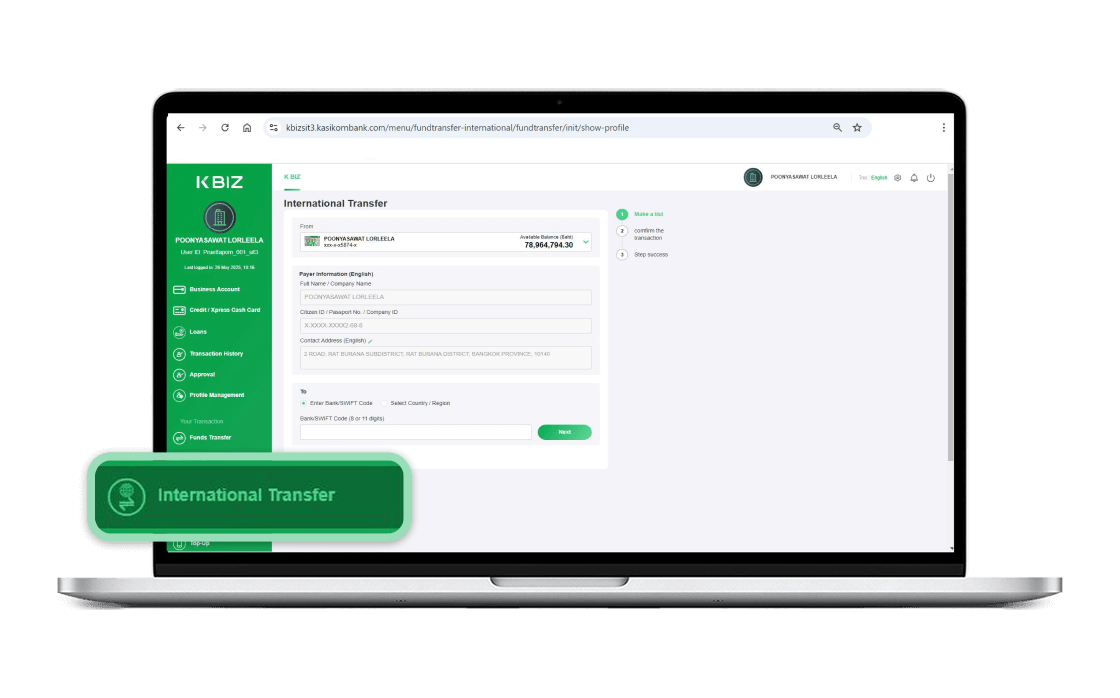
Step 1/7
Launch K BIZ and Select “International Transfer”
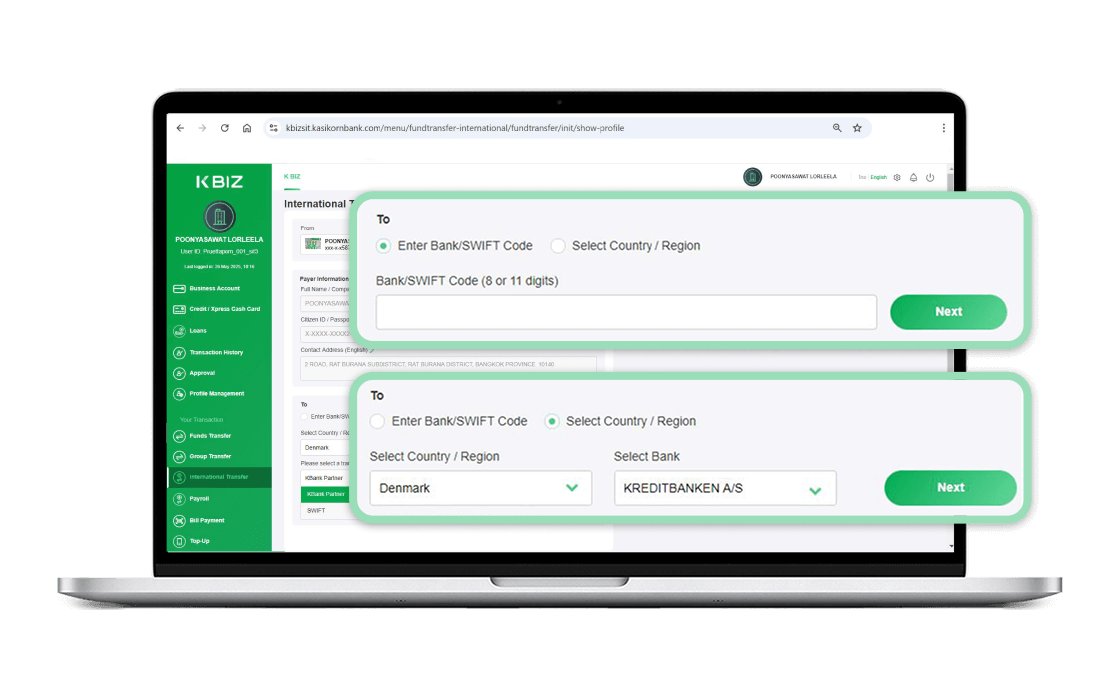
Step 2/7
You can choose to select receiving bank by:
Option 1: Fill-in Bank/SWIFT Code
Option 2: Select Country/Region and Select Bank and click “Next”
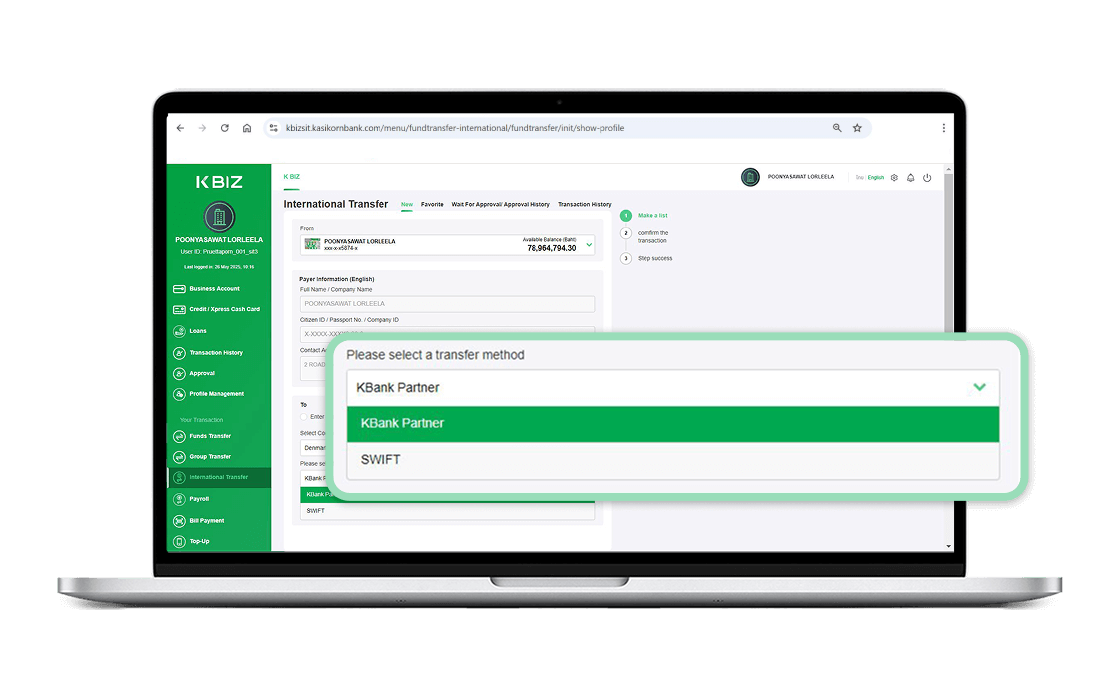
Step 3/7
There will be one or two channels available, depending on the country. Select “KBank Partner” and click “Confirm”
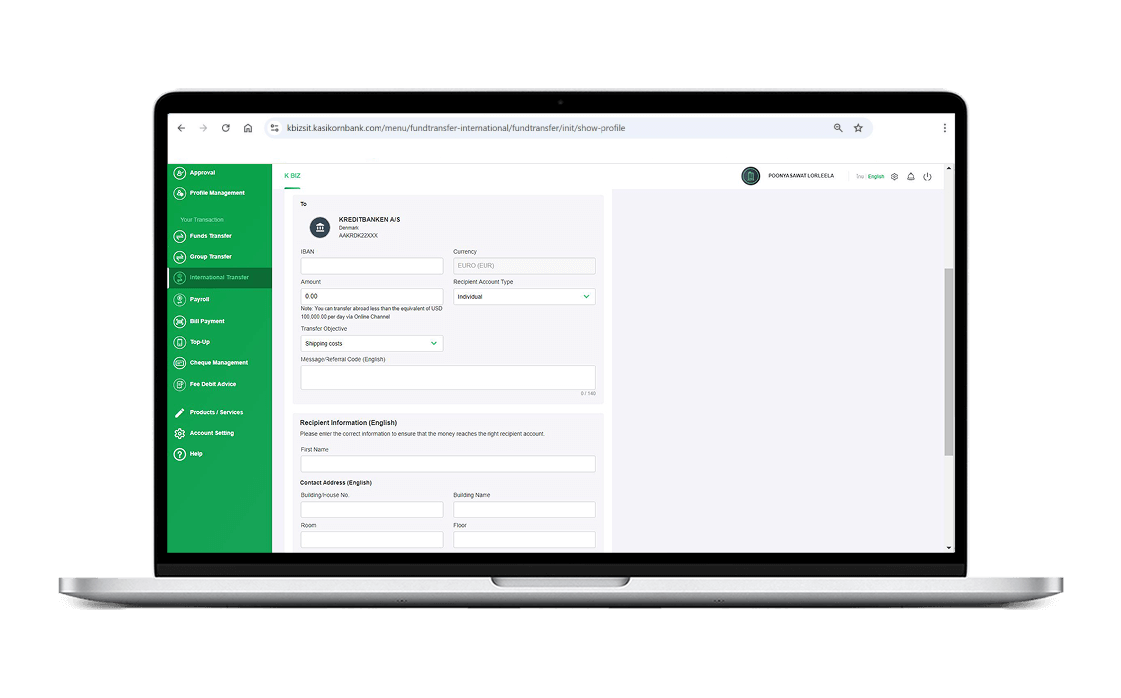
Step 4/7
Fill-in transfer details and recipient’s details and click “Next”
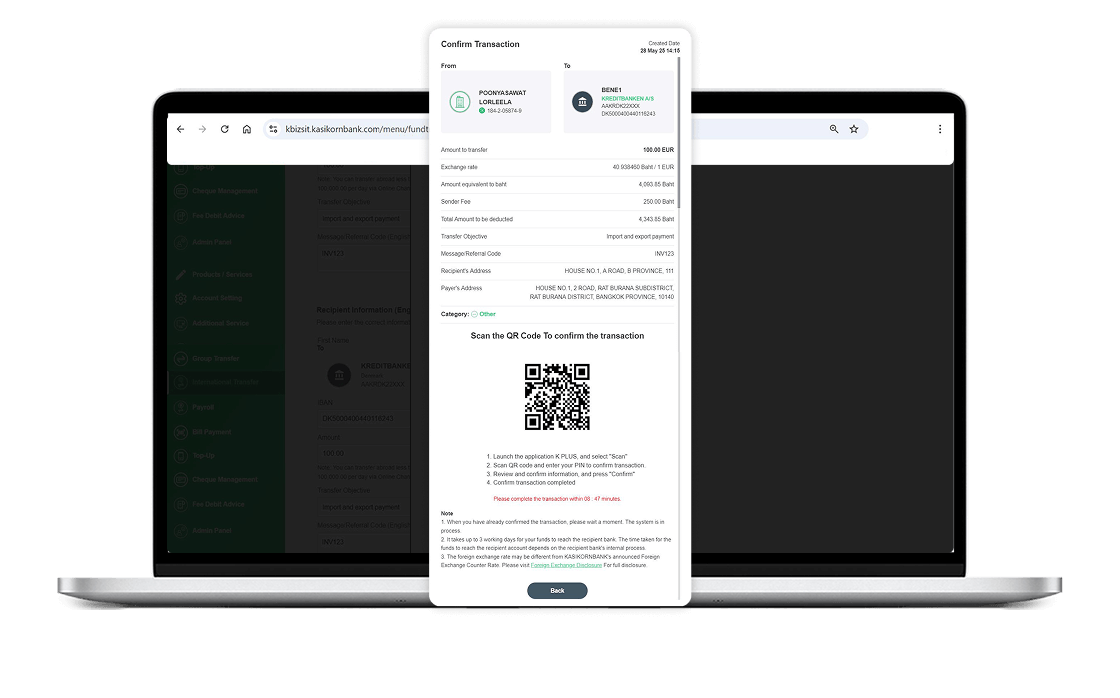
Step 5/7
Verify the information and scan the QR Code to confirm the transaction via K PLUS
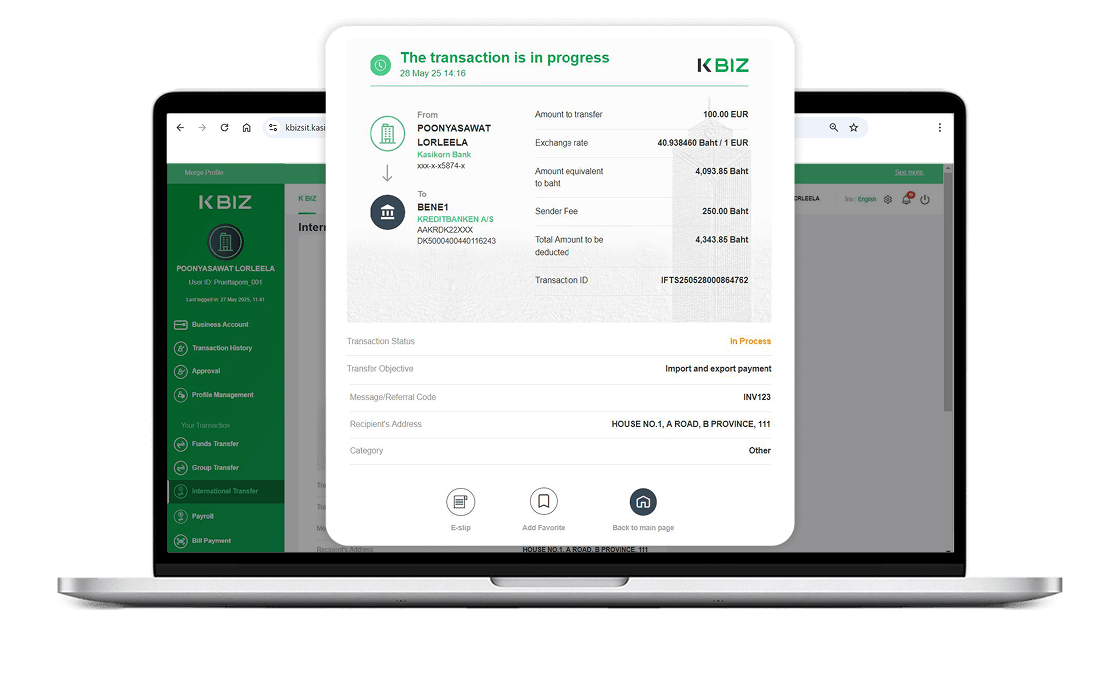
Step 6/7
Confirm transaction completed. System will show the transfer details and the status of transaction.
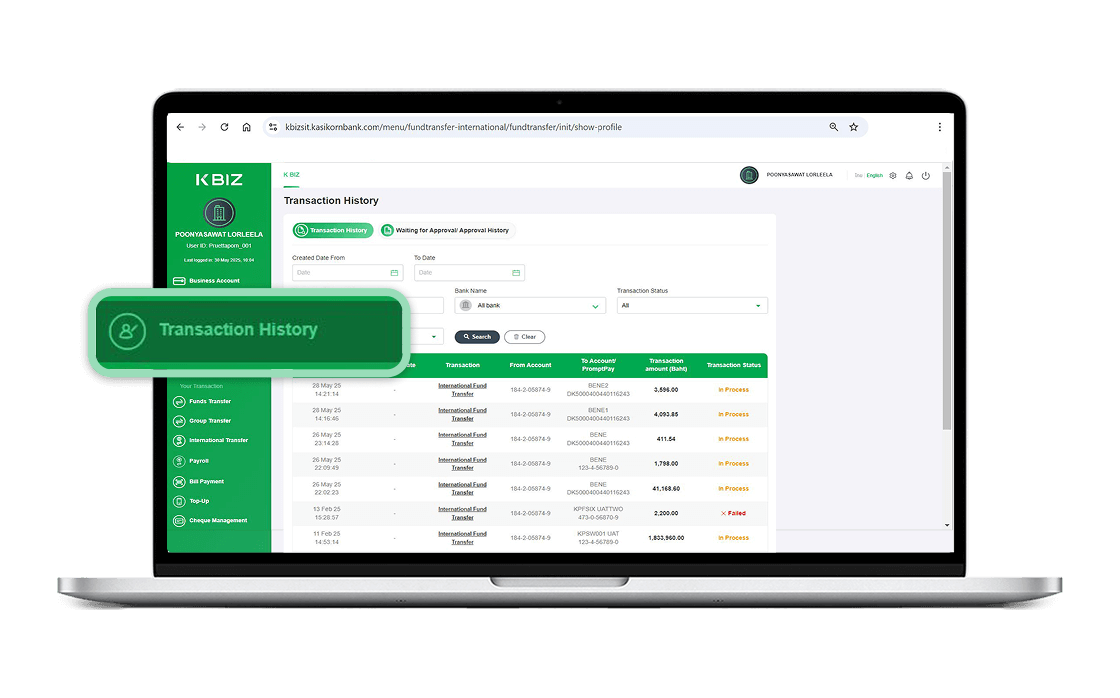
Step 7/7
“Transaction History” will show the status of the transaction.
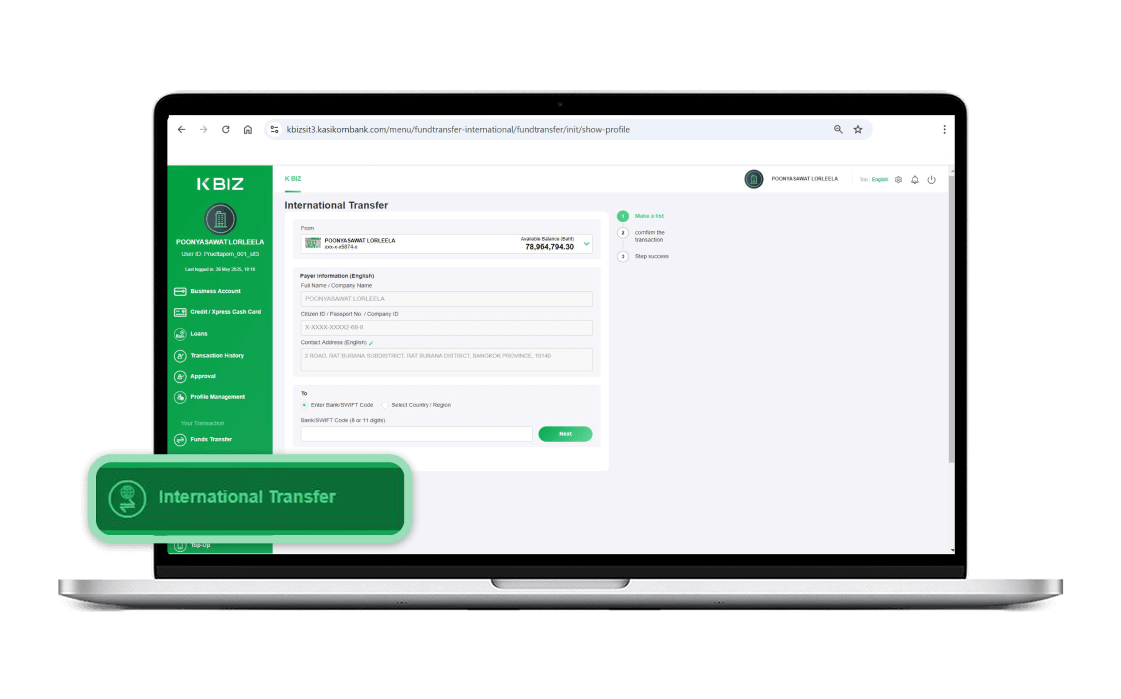
Step 1/8
Launch K BIZ and Select “International Transfer”
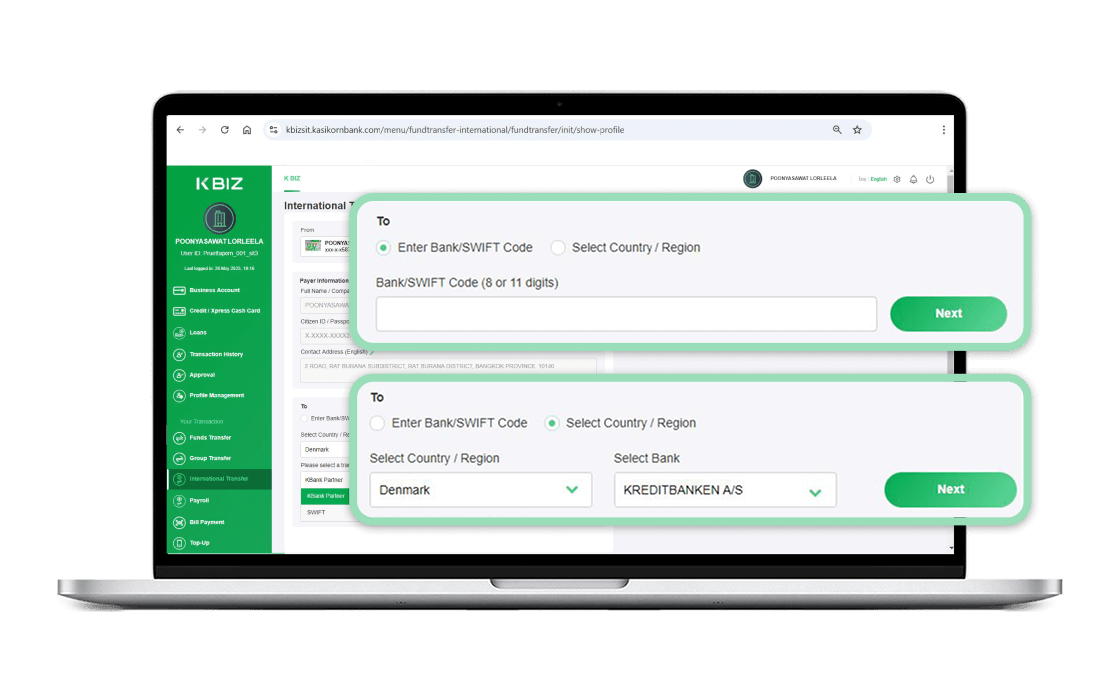
Step 2/8
You can choose to select receiving bank by:
Option 1: Fill-in Bank/SWIFT Code
Option 2: Select Country/Region and Select Bank and click “Next”
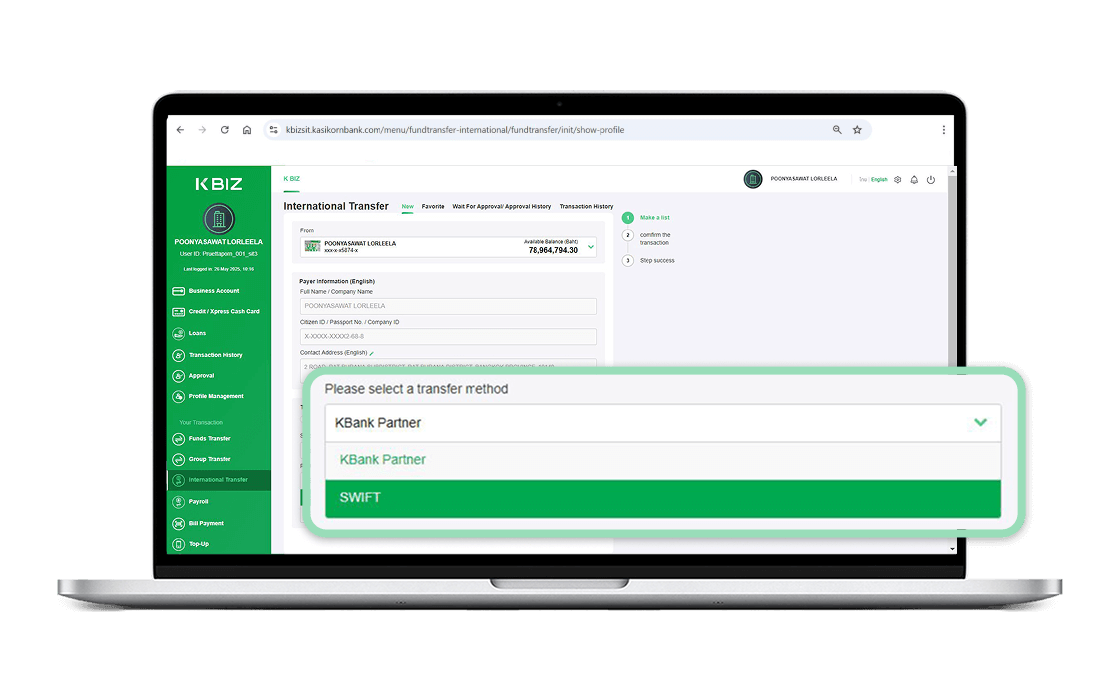
Step 3/8
There will be one or two channels available, depending on the country. Select “SWIFT” and click “Confirm”
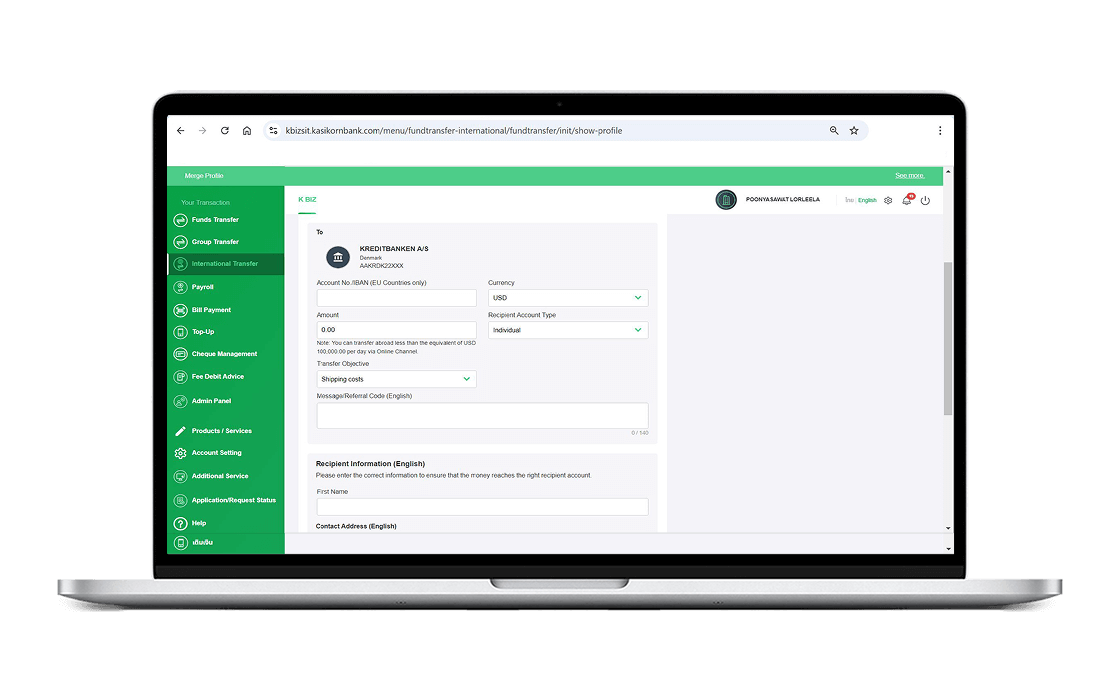
Step 4/8
Fill-in transfer details and recipient’s details and click “Next”
Step 5/8
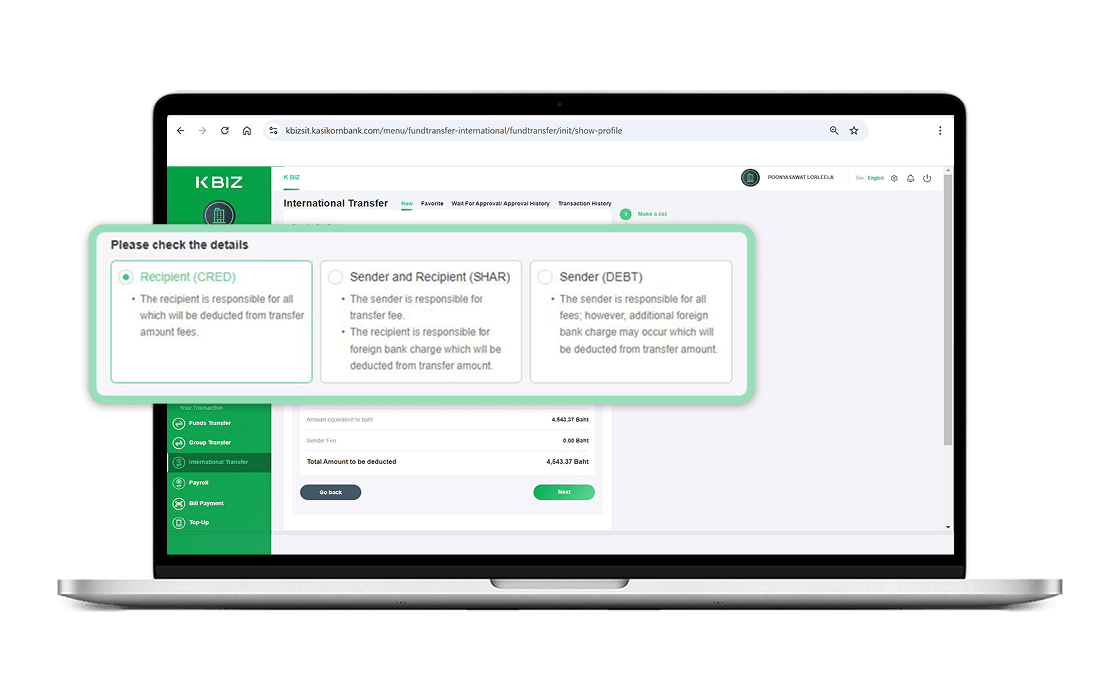
Select Fee Payer “CRED/SHAR/DEBT” and click “Next”
Step 6/8
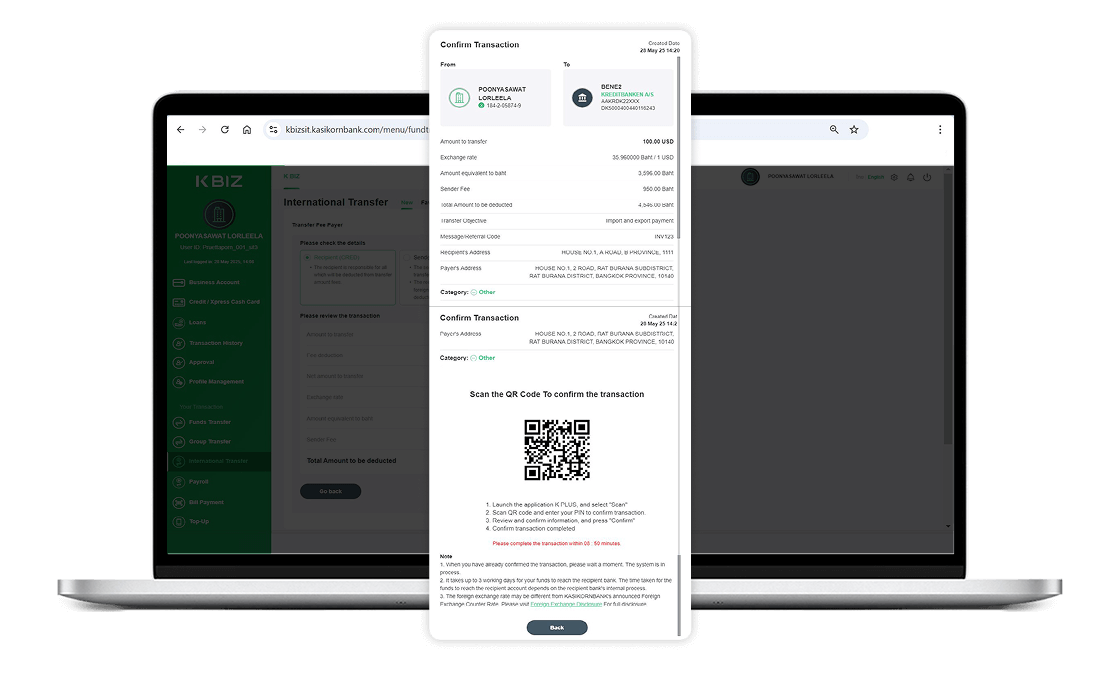
Verify the information and scan the QR Code to confirm the transaction via K PLUS
Step 7/8
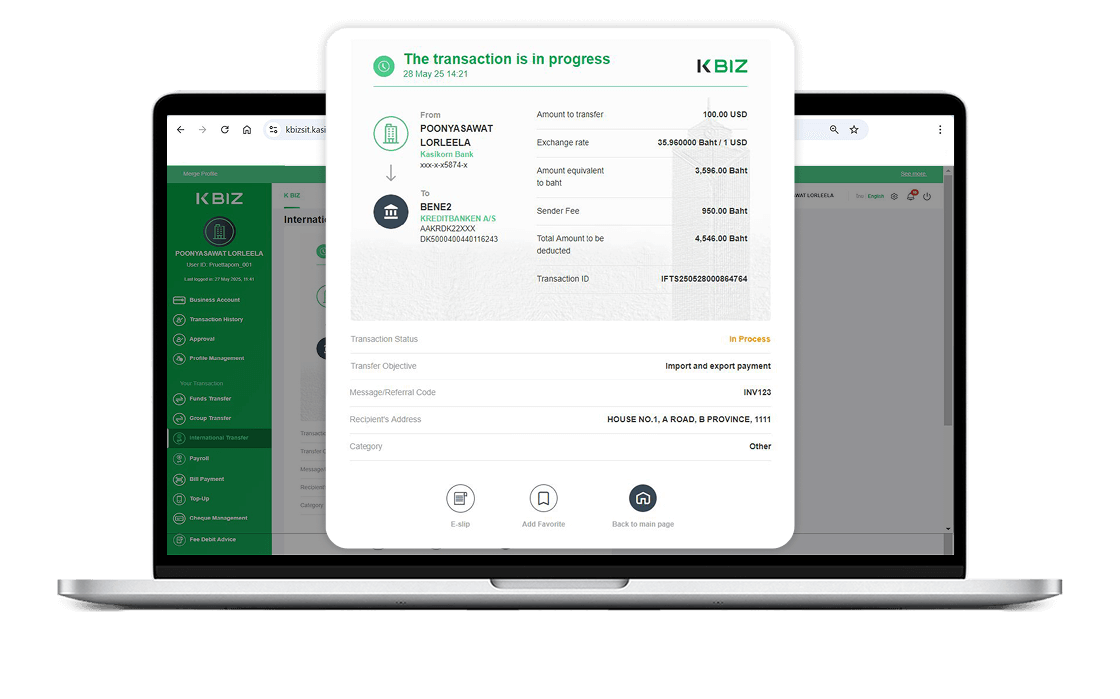
Confirm transaction completed. System will show the transfer details and the status of transaction.
Step 8/8
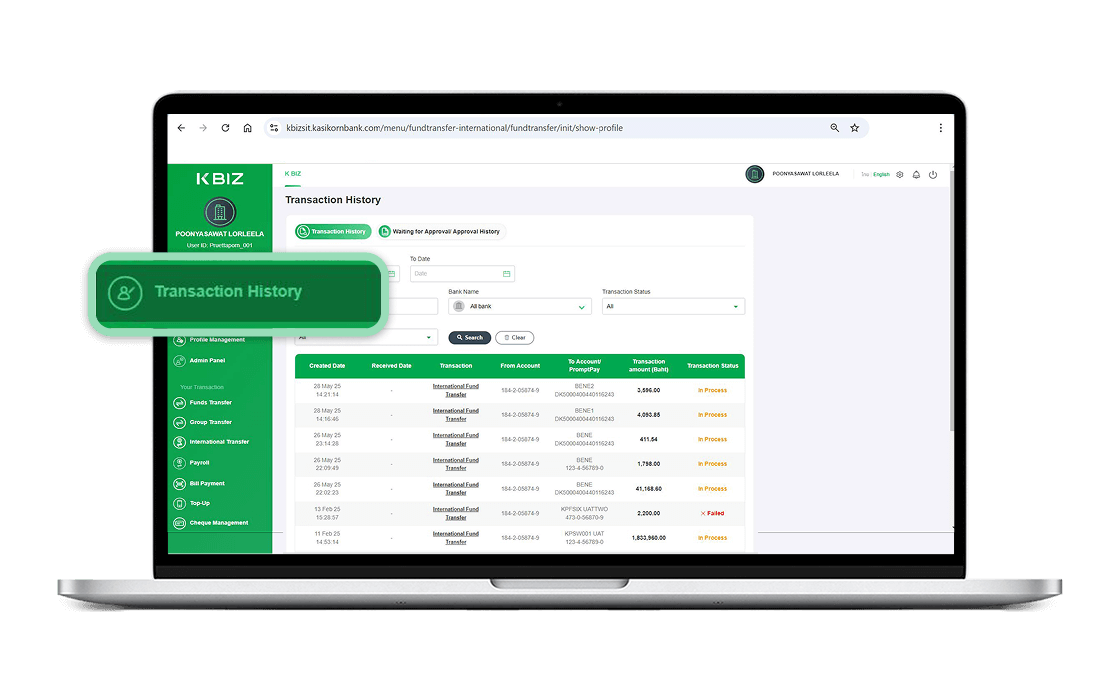
“Transaction History” will show the status of the transaction.


กดและเลื่อนเพื่อดูข้อมูลภายในตาราง
|
Country/ Territory |
Transfer via | Currency | Receiving Account Info |
Receiving Bank Info |
|---|
| Objectives | Individuals | Juristic |
|---|---|---|
| Payment of imported and exported products | ||
| Students’ expenses | - | |
| Consultant’s fee | ||
| Income repatriation by workers | - | |
| Remittance to family members or relatives who have a permanent residence in other countries | - | |
| International travel expenses - others | ||
| Travel expenses - tourists | ||
| Fares | ||
| Healthcare expenses | ||
| Shipping costs | ||
| Insurance and reinsurance premiums on goods | ||
| Indemnity for goods | ||
| News service fees | ||
| Advertisement costs | ||
| Property rental |


Step 1/7
Launch K BIZ and Select “International Transfer”
Step 2/7
You can choose to select receiving bank by:
Option 1: Fill-in Bank/SWIFT Code
Option 2: Select Country/Region and Select Bank and click “Next”
Step 3/7
There will be one or two channels available, depending on the country. Select “KBank Partner” and click “Confirm”
Step 4/7
Fill-in transfer details and recipient’s details and click “Next”
Step 5/7
Verify the information and scan the QR Code to confirm the transaction via K PLUS
Step 6/7
Confirm transaction completed. System will show the transfer details and the status of transaction.
Step 7/7
“Transaction History” will show the status of the transaction.
Step 1/8
Launch K BIZ and Select “International Transfer”
Step 2/8
You can choose to select receiving bank by:
Option 1: Fill-in Bank/SWIFT Code
Option 2: Select Country/Region and Select Bank and click “Next”
Step 3/8
There will be one or two channels available, depending on the country. Select “SWIFT” and click “Confirm”
Step 4/8
Fill-in transfer details and recipient’s details and click “Next”
Step 5/8
Select Fee Payer “CRED/SHAR/DEBT” and click “Next”
Step 6/8
Verify the information and scan the QR Code to confirm the transaction via K PLUS
Step 7/8
Confirm transaction completed. System will show the transfer details and the status of transaction.
Step 8/8
“Transaction History” will show the status of the transaction.
